Android smartphones continue to evolve, offering new ways to make everyday tasks faster and more convenient. In 2026, gesture-based controls remain an interesting option for users who want to personalize how they interact with their devices.
Instead of navigating through multiple menus or searching for an application, you can use a custom gesture or drawing to trigger a specific action. Depending on the app, you might draw a circle to launch an application, create a letter-shaped gesture to open a website, or use a personalized symbol to access a frequently used shortcut.
These tools can simplify routine interactions and make your smartphone experience more personalized.
What Is a Draw-to-Action Android App?
A draw-to-action Android app is an application that allows users to create custom gestures and associate them with specific commands or shortcuts.
Rather than relying entirely on traditional buttons, icons, and menus, users can draw a predefined shape or perform a particular gesture to initiate an action.
Depending on the application’s capabilities, supported actions may include:
- Opening applications
- Launching shortcuts
- Visiting websites
- Accessing supported phone functions
- Navigating between screens
- Performing frequently used tasks
- Triggering customized commands
The available features depend on the application, Android version, smartphone manufacturer, and required permissions.
How Does Draw-to-Perform Technology Work?
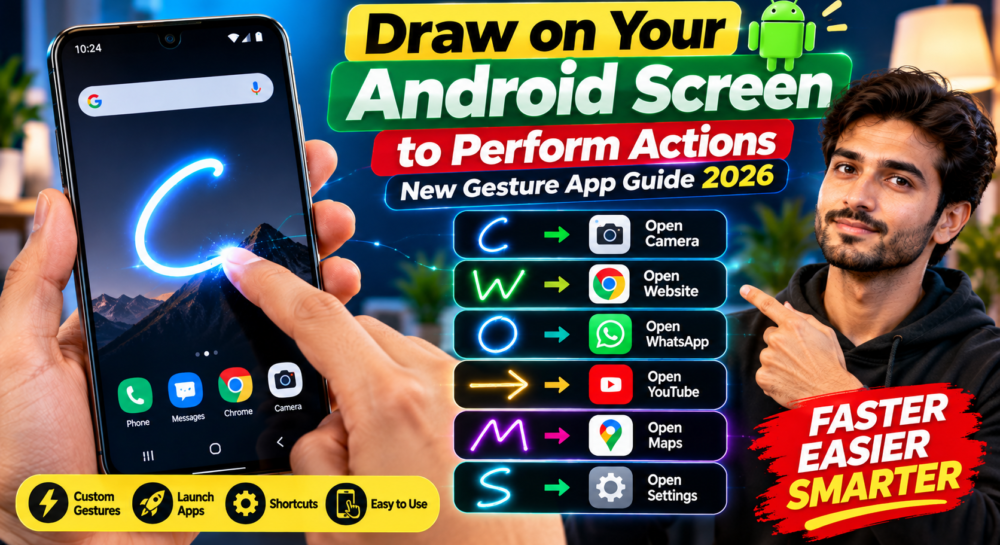
The basic concept is straightforward. First, install a compatible gesture application and configure the actions you want to perform. Next, create individual gestures and assign a command to each one.
For example:
- Draw C: Open the Camera app.
- Draw W: Launch a selected website.
- Draw a circle: Open your favorite application.
- Draw an arrow: Trigger a supported navigation shortcut.
- Draw a custom symbol: Launch a frequently used command.
Once configured, the application attempts to recognize the gesture and execute the associated action.
Some applications may require special Android permissions to recognize gestures outside their own interface or display controls over other applications. Always review these permissions before enabling them.
Why Are Custom Screen Gestures Useful?
The main advantage of gesture-based controls is convenience. Smartphone users often repeat the same actions throughout the day, such as opening the camera, launching a browser, or accessing a frequently used application.
Normally, these tasks may require locating an icon, opening a menu, or navigating through several screens.
Custom gestures can reduce the number of steps involved by providing an alternative way to access supported functions.
For example, instead of searching through your home screen for the Camera app, you might use a predefined gesture to launch it.
This approach can be particularly helpful for users who regularly access the same applications and shortcuts.
Important Features to Look for in a Gesture App
If you’re searching for a draw-to-action Android application, consider the following features before choosing one.
1. Custom Gesture Creation
The application should allow you to create gestures that are easy to remember and comfortable to draw.
2. App Launching
Look for support for launching installed applications directly through assigned gestures.
3. Shortcut Integration
Useful gesture tools may support website shortcuts, system functions, or other actions available through Android.
4. Reliable Gesture Recognition
Accurate recognition is essential. If the application frequently misinterprets your drawings, using gestures may become inconvenient rather than helpful.
5. Simple Customization
An easy-to-use interface can make creating, editing, and managing gestures much more convenient.
6. Low Battery Consumption
Choose an application that operates efficiently without unnecessarily draining your battery.
7. Compatibility With Your Device
Check whether the application supports your Android version and works with your smartphone’s launcher and system restrictions.
8. Transparent Permission Controls
The application should clearly explain why it requires particular permissions and how those permissions are used.
Not every gesture application supports all these features, so review its current specifications before installing it.
How to Install and Set Up a Gesture Application
Although the setup process differs between applications, the general steps are usually similar.
- Open the Google Play Store.
- Search for a reputable gesture-control application.
- Check the developer information, reviews, compatibility, and permissions.
- Install the application if it meets your requirements.
- Open the app and follow its setup instructions.
- Create a gesture and assign it to a supported action.
- Test the gesture to confirm that it works correctly.
Some applications may require additional permissions to detect gestures while other apps are open. Grant these permissions only when necessary and when you understand their purpose.
Check App Permissions Before Installing
Gesture applications sometimes request permissions that allow them to detect interactions, display overlays, or access accessibility features.
These permissions may be necessary for certain functions, but they can also introduce privacy and security considerations.
Before installing an unfamiliar application:
- Review its developer information.
- Read recent user reviews.
- Check its update history.
- Read the privacy policy.
- Examine the requested permissions.
- Avoid granting access that is unrelated to the application’s purpose.
Be especially cautious with APK files downloaded from unknown websites. An application promising advanced gesture features is not automatically trustworthy.
Does Draw-to-Action Work on Every Android Phone?
No. Gesture functionality can vary depending on the device and software configuration.
Important compatibility factors include:
- Android version
- Smartphone manufacturer
- Default launcher
- System security restrictions
- Available permissions
- Gesture application’s supported features
An application may work well on one phone but offer limited functionality on another.
For this reason, check the developer’s compatibility information and test the application before relying on it for important tasks.
Is a Draw-to-Action Android App Worth Trying?
A gesture application can be useful if you frequently open the same applications, visit particular websites, or use repetitive shortcuts.
Its biggest advantage is personalization. You can assign gestures that are easy for you to remember rather than relying exclusively on a fixed collection of buttons and icons.
However, the actual benefit depends on the application’s reliability, compatibility, and supported actions. If gesture recognition is inconsistent or the setup process is complicated, traditional shortcuts may remain the better choice.
Final Thoughts
Draw-to-action Android applications provide an alternative way to interact with your smartphone by connecting custom gestures to supported commands.
When implemented effectively, these tools can reduce repetitive taps, provide quicker access to frequently used functions, and make Android devices more customizable.
If you’re interested in smartphone productivity and personalization, experimenting with a reputable gesture-control application may be worthwhile. Before installing one, verify its compatibility, review its permissions, and choose a tool that provides reliable gesture recognition.
Frequently Asked Questions
Can I create my own gestures on Android?
Yes. Some dedicated gesture applications allow users to create custom shapes and associate them with supported actions. Available options depend on the application and device.
Can a gesture open an Android application?
Yes. Applications that support gesture-based app launching can associate a predefined drawing with an installed application.
Can I draw a shape to open a website?
Some gesture tools support website shortcuts or custom actions that can launch a specified web address.
Does this feature work on every Android smartphone?
No. Compatibility depends on the Android version, manufacturer, launcher, system restrictions, and application permissions.
Are gesture applications safe?
They can be, but safety depends on the individual application. Review the developer, privacy policy, permissions, and recent reviews before installing unfamiliar software.
Do gesture applications consume battery power?
Some applications may use additional battery power, particularly if they continuously monitor gestures or run background services. Actual consumption depends on the application and device.
Can I use gestures without opening an application first?
Some gesture tools support system-wide gestures, while others work only within their own interface or a compatible launcher. Check the application’s documented capabilities before installing it.