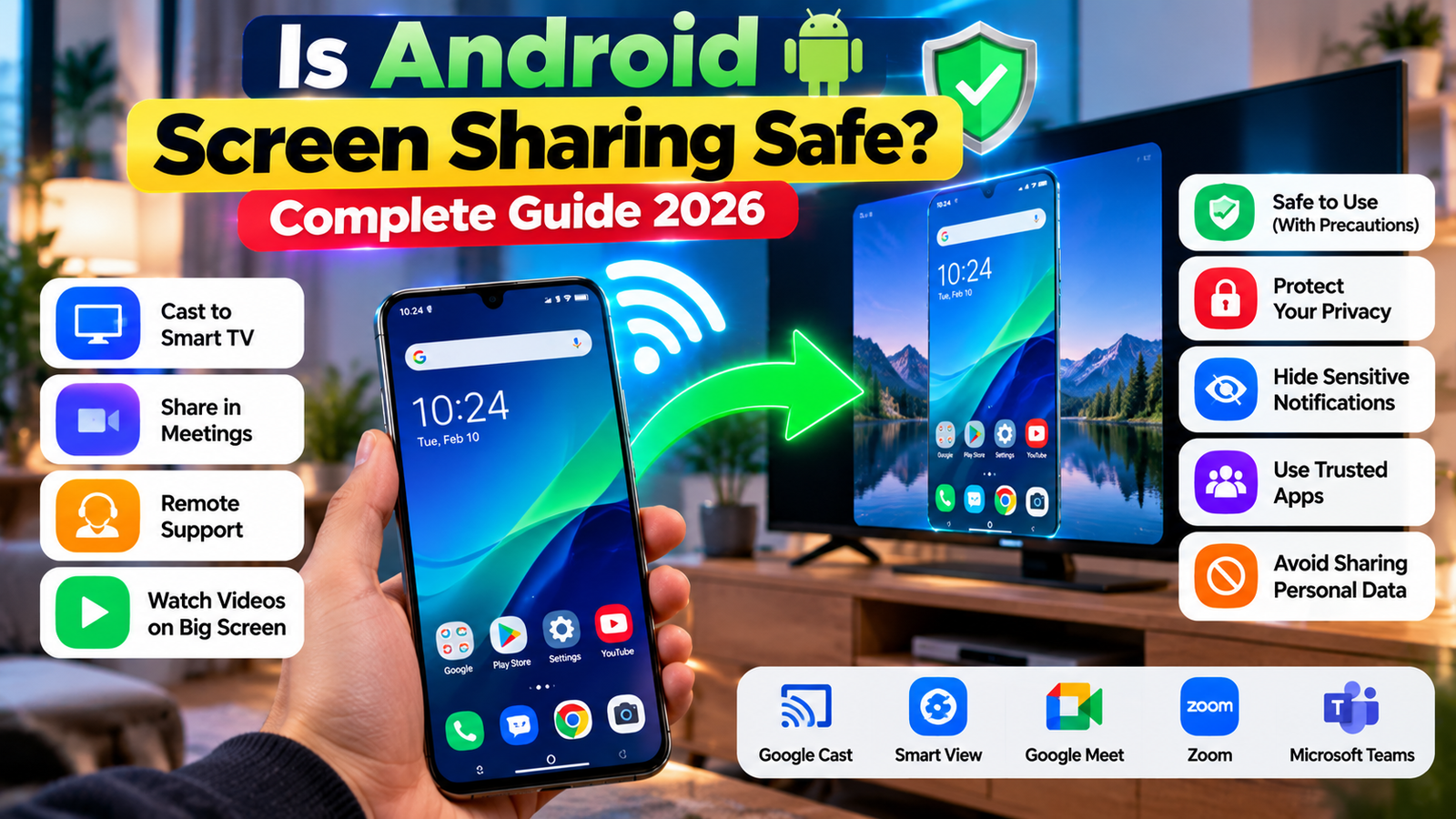
But one important question remains: Is Android screen sharing safe?
Generally, yes. Screen sharing is safe when you use trusted devices and applications. However, it can create privacy risks because the person or device receiving your screen may see sensitive information displayed on it.
In this guide, you’ll learn how Android screen sharing works, how to use it, and how to protect your personal information while sharing your screen.
What Is Android Screen Sharing?
Android screen sharing allows you to display your smartphone’s screen on another device or share it remotely with another person.
Depending on your phone and the service you use, this feature may be called Screen Cast, Screen Mirroring, Smart View, Cast, or Screen Share.
For example, you can mirror your Android phone to a compatible smart TV or share your display during an online meeting using Google Meet, Zoom, or Microsoft Teams.
The available options vary depending on your Android version, phone manufacturer, and installed applications.
How to Share Your Android Screen
One of the easiest ways to start screen sharing is through your phone’s Quick Settings panel.
Step 1: Open Quick Settings
Unlock your Android phone and swipe down from the top of the screen. Swipe down again if necessary to open the full Quick Settings panel.
Look for an option such as:
- Cast
- Screen Cast
- Smart View
- Screen Share
- Wireless Display
The exact name depends on your device.
Step 2: Select a Receiving Device
Tap the relevant casting or screen-sharing option. Your phone may search for compatible devices nearby.
If you’re connecting to a television or another device over a local network, make sure both devices meet the connection requirements, which may include being connected to the same Wi-Fi network.
Select the device you want to connect to.
Step 3: Confirm the Connection
Some receiving devices may display a confirmation message or PIN. Follow the instructions shown on your phone and the receiving device.
Once the connection is established, your Android screen should appear on the other display.
Step 4: Stop Screen Sharing
When you’ve finished, reopen Quick Settings or the notification panel.
Find the active casting or screen-sharing connection and tap Stop, Disconnect, or the corresponding option displayed on your device.
Always end the session when you no longer need it.
Is Android Screen Sharing Safe?
For most everyday activities, Android screen sharing is safe when you use trusted features, applications, and receiving devices.
The main concern is privacy. Anything visible on your screen could potentially be seen by the person or device receiving the shared display.
Depending on what appears during the session, this could include:
- Private messages and emails
- Passwords and account details
- Personal photographs
- Banking information
- Confidential documents
- Verification codes
- Notification previews
Treat every screen-sharing session as a privacy-sensitive activity, especially when sharing with someone you don’t know personally.
How to Use Android Screen Sharing Safely
Follow these precautions to reduce the risk of exposing private information.
1. Hide Sensitive Notifications
Notifications may appear while you’re sharing your screen. Before starting, consider enabling Do Not Disturb or hiding sensitive notification previews.
This can help prevent private messages, verification codes, and other personal information from appearing unexpectedly.
2. Use Trusted Applications
Install screen-sharing and remote-support applications from reputable sources, preferably official app stores.
Avoid unfamiliar applications that request unnecessary permissions or promise features that seem suspicious.
3. Verify the Recipient
Before sharing your screen, confirm exactly who or what will receive it.
This is especially important during online meetings, video calls, and remote-support sessions. Double-check that you’ve selected the correct person or device.
4. Avoid Opening Confidential Information
While your screen is visible to others, avoid opening banking applications, password managers, private conversations, authentication codes, or confidential documents.
If you need to access sensitive information, stop sharing first.
5. Stop Sharing When Finished
Don’t leave a screen-sharing session running unnecessarily.
Disconnect as soon as your presentation, meeting, troubleshooting session, or casting activity is complete.
6. Be Careful With Remote-Support Permissions
Some remote-support applications may request accessibility access, screen-control permissions, or other powerful privileges.
Only grant these permissions when you understand their purpose and fully trust the application and the person assisting you.
Screen Sharing vs. Screen Mirroring
Although these terms are sometimes used interchangeably, they often describe different activities.
Screen mirroring generally means displaying your entire phone screen on a nearby device, such as a television.
Screen sharing commonly refers to showing your screen to other participants during an online meeting or remote-support session.
Both features are useful, but both can expose information displayed on your phone.
Does Screen Sharing Give Someone Control of Your Phone?
No. Ordinary screen sharing does not automatically give another person control of your Android phone.
However, some remote-support applications can request additional permissions that allow another person to interact with your device.
Never approve accessibility access, remote-control permissions, or similar privileges unless you understand why they’re needed and trust the person or application requesting them.
If you’re unsure about a permission request, cancel it and verify the application’s legitimacy before proceeding.
Does Android Screen Sharing Use Internet Data?
Data usage depends on the method you choose.
- Local wireless casting: May primarily use your local Wi-Fi network.
- Online screen sharing: Usually requires an internet connection and may consume mobile data or Wi-Fi bandwidth.
- Video meetings with screen sharing: Data usage depends on the application, session length, video quality, and other activity during the meeting.
If you have a limited mobile data package, check your connection before starting a long session.
Can You Share an Android Screen With a TV?
Yes. Many Android phones support screen casting or mirroring to compatible smart TVs and streaming devices.
The connection method varies by manufacturer. Some devices use Google Cast, while others provide their own screen-mirroring technology.
Check your phone’s Quick Settings and your television’s available connection options to determine which method is supported.
Final Thoughts
Android screen sharing is a useful feature for entertainment, presentations, online meetings, tutorials, and technical support. In most normal situations, it is safe when you use trusted applications and devices.
The most important thing to remember is that anything visible on your screen may be exposed during a sharing session.
Before sharing, hide sensitive notifications, verify the recipient, avoid opening confidential information, and disconnect when you’re finished.
By following these simple precautions, you can enjoy the convenience of Android screen sharing while keeping your personal information safer.
Frequently Asked Questions
Can I share my Android screen with a TV?
Yes. Compatible Android phones can cast or mirror their displays to supported smart TVs and streaming devices.
Can someone see my notifications while I’m sharing my screen?
Potentially, yes. Notifications displayed on your screen may also be visible to the person or device receiving the shared display.
Can someone control my phone just because I’m sharing my screen?
No. Ordinary screen sharing does not automatically grant remote control. However, some remote-support applications may request additional permissions that allow interaction with your device.
Is screen sharing safe when using banking apps?
It’s best to avoid opening banking applications or displaying financial information while your screen is being shared.
How do I stop Android screen sharing?
Open Quick Settings or the notification panel, find the active casting or screen-sharing connection, and select Stop or Disconnect.
Is Android screen sharing free?
Built-in casting features are generally available without a separate screen-sharing subscription. However, specific apps, services, or receiving devices may have their own requirements or costs.